ODosta Inc. Create Your Own Tech World

If you recently upgraded to Windows 11 and you’re not happy with it, you’re not alone. Many users prefer the familiarity and stability of Windows 10. The good news? You can downgrade and in most cases, your Windows 10 license will still be activated. In this guide, I’ll walk you through exactly how to downgrade Windows 11 to Windows 10, even if the 10-day rollback period has already expired.
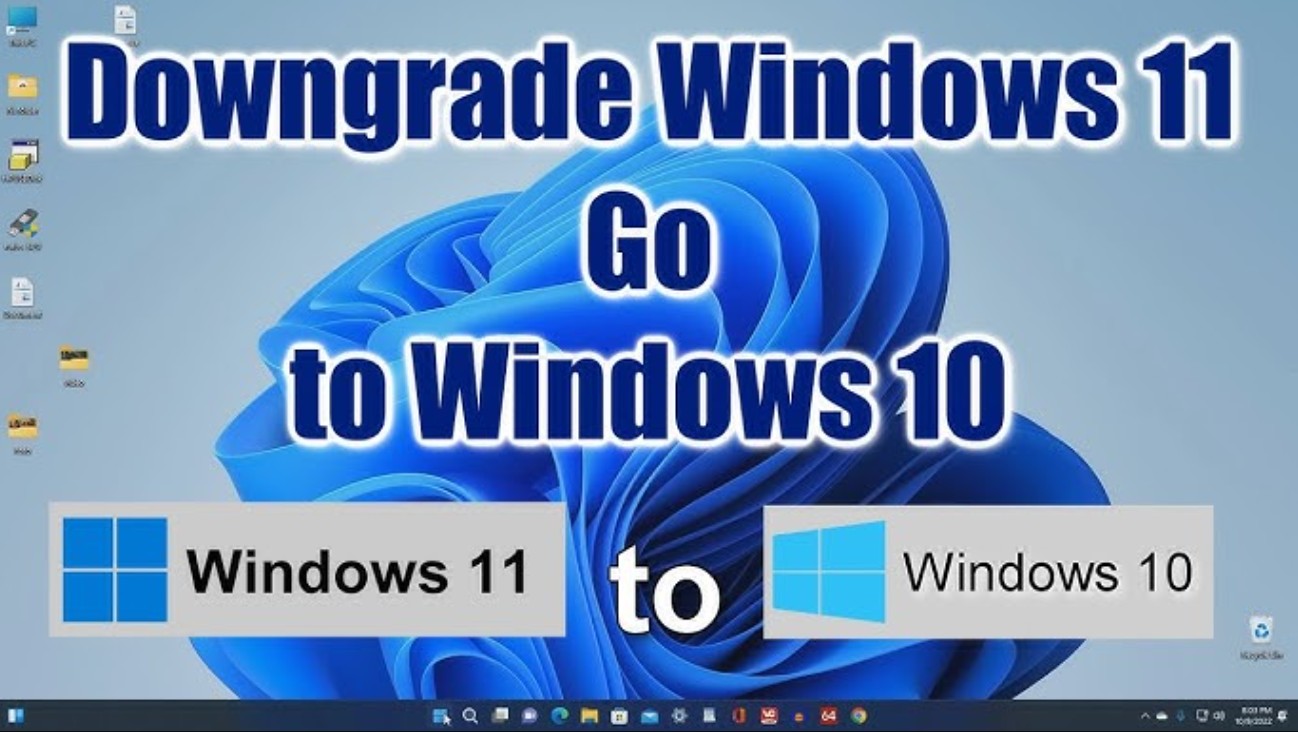
Can You Downgrade Windows 11 to Windows 10?
Yes, you can. There are two scenarios:
Scenario 1: Within 10 Days of Upgrading
If you upgraded from Windows 10 to Windows 11 within the last 10 days, you can use the built-in rollback option:
Settings > System > Recovery > Go Back
This method:
-
Keeps your files
-
Restores your previous Windows 10 setup
-
Maintains activation
Scenario 2: After 10 Days (Most Common Case)
If the rollback option is no longer available, you’ll need to perform a clean installation of Windows 10.
Important:
-
This will erase all apps, files, and settings.
-
You must back up your data first.
But here’s the key point:
Windows 10 will automatically reactivate on the same hardware.
How to Downgrade Windows 11 to Windows 10 (Step-by-Step)
Step 1: Back Up Your Data
Before doing anything:
-
Copy important files to an external drive
-
Or use cloud storage
-
Save product keys if needed
A clean install wipes everything.
Step 2: Download the Windows 10 Media Creation Tool
Go to Microsoft’s official website and download the Windows 10 Media Creation Tool. This ensures:
-
You get a clean ISO
-
The installation is genuine
-
Activation works properly
Step 3: Create Installation Media
You have two options:
Option A (Recommended)
Create a bootable USB flash drive.
Option B
Download the ISO file and mount it directly in Windows.
Both methods work, but USB is usually more reliable.
Step 4: Install Windows 10
Run the setup from the USB or mounted ISO. During installation:
-
Accept license terms
-
Choose your installation type
-
You’ll see that “Keep files and apps” is unavailable
-
Select Install
The system will:
-
Restart multiple times
-
Install drivers
-
Complete setup
Be patient — this can take some time.
Step 5: Set Up Windows 10
After installation:
-
Create an account (online or offline)
-
Adjust privacy settings
-
Connect to the internet
Step 6: Check Activation Status
Go to: Settings > Update & Security > Activation You should see:
“Windows 10 is activated with a digital license.”
If your PC was previously activated, Windows 10 will automatically reactivate once online.
Why Activation Still Works
Microsoft ties your Windows license to your hardware (mainly your motherboard). If:
-
You reinstall on the same PC
-
You install the same edition (Home or Pro)
Then activation happens automatically.
OEM vs Retail Keys
-
OEM keys are locked to your hardware.
-
Retail keys can be transferred to another PC.
Most prebuilt systems use OEM licenses.
Can You Upgrade Back to Windows 11 Later?
Yes. Off course, If your PC supports Windows 11, you can reinstall it in the future and it will reactivate automatically as long as you’re using the same hardware but you can Buy a New Product Key, In case there’s any issue in activation.
Final Thoughts
Downgrading from Windows 11 to Windows 10 is completely possible, even after the 10-day rollback period. Just remember:
- Back up your data
- Use Microsoft’s official installation media
- Install the correct edition
- Stay on the same hardware for automatic activation
If you follow these steps, the process is straightforward and your Windows 10 license should activate without any issues.