ODosta Inc. Create Your Own Tech World

Windows 11 is the latest version of Microsoft Windows series. If you need to reinstall Windows, transfer your license, or troubleshoot activation issues, knowing how to find your Windows 11 product key is essential. In this guide, you’ll learn three simple methods to Find Windows 11 Product Key, plus important security tips and expert advice most tutorials don’t mention.
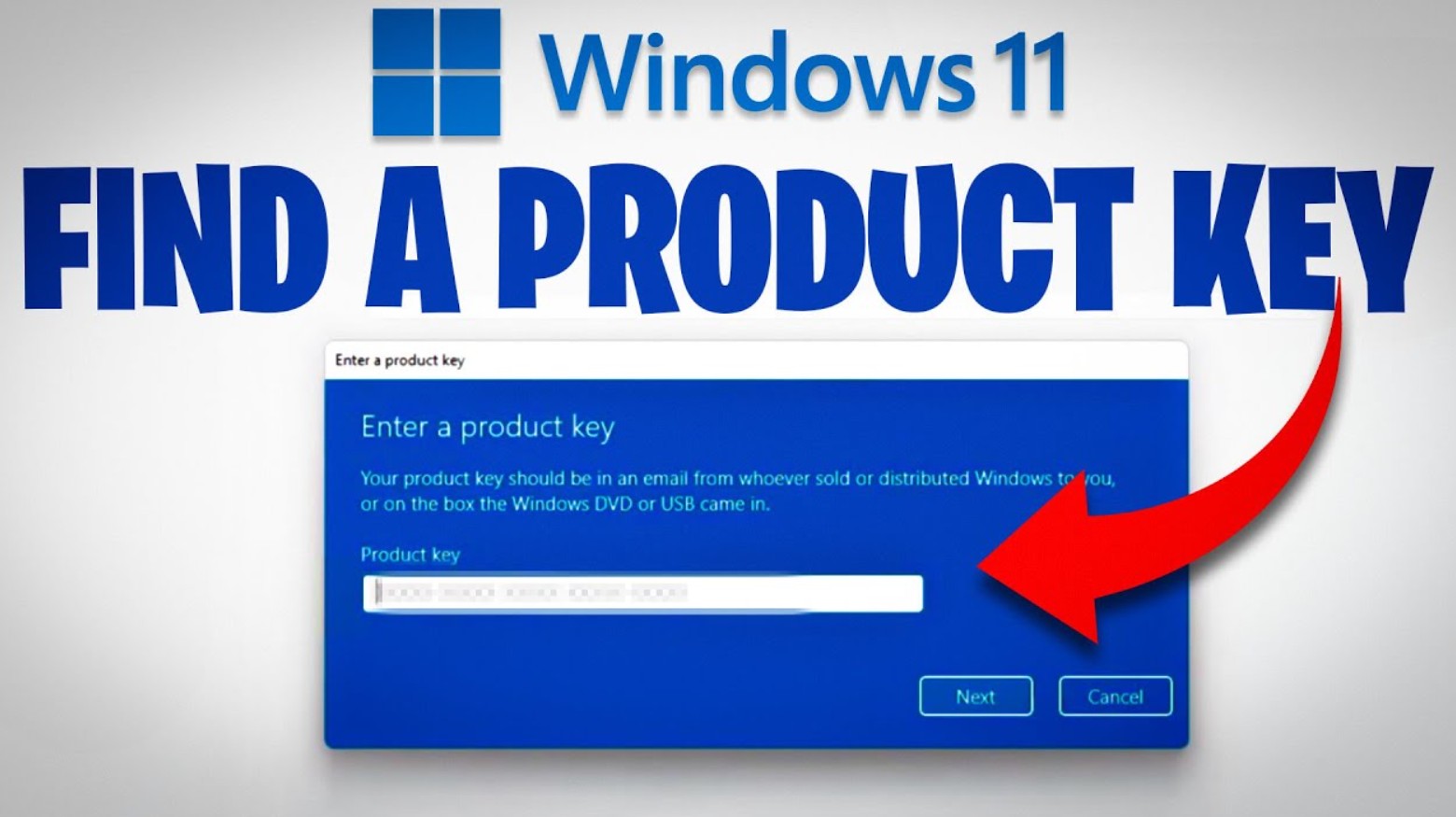
How to Find Windows 11 Product Key
Product key finding process is simple and easy but before proceeding, you should know the basics.
What Is a Windows Product Key?
A Windows product key is a 25-character code used to activate Windows. It looks like this:
XXXXX-XXXXX-XXXXX-XXXXX-XXXXX
Depending on how you got Windows, your key may be:
-
Embedded in your motherboard (OEM license)
-
Linked to your Microsoft account (Digital License)
-
Included with a retail purchase
-
Stored in your system registry
Now let’s retrieve it.
Method 1: Find Product Key Using Registry Editor
This method works if your key is stored in your system registry.
Step-by-step:
-
Click the Start button
-
Type
regedit -
Right-click Registry Editor > Select Run as Administrator
Now navigate to:
Microsoft
Windows NT
CurrentVersion
SoftwareProtectionPlatform
-
Click SoftwareProtectionPlatform
-
On the right side, look for BackupProductKeyDefault
-
Your Windows 11 product key will appear next to it
Important Notes:
-
Not all systems show the full product key here.
-
Some devices only store a partial key.
-
Be careful in Registry Editor — don’t modify anything unless you know what you’re doing.
Method 2: Use a Product Key Finder Tool
If the registry method doesn’t work, third-party tools can scan your system and retrieve stored license information.
One example is:
EaseUS Key Finder
How it works:
-
Download and install the tool
-
Open the program
-
It automatically scans your system
-
Your Windows product key appears instantly
Bonus Features:
Some tools can also show:
-
Microsoft Office product keys
-
Saved browser passwords
-
Wi-Fi passwords
-
Installed software keys
Security Warning:
Be extremely careful when using key finder tools.
-
Download only from official websites
-
Avoid cracked versions
-
Do not install unknown software from random sites
Because these tools access sensitive system data, always scan them with antivirus before use.
Method 3: Use Command Prompt (Fastest Method)
This is the simplest and safest built-in method.
Step-by-step:
-
Click Start
-
Type
cmd -
Right-click Command Prompt > Run as Administrator
-
Paste the following command:
-
Press Enter
If your product key is embedded in your motherboard, it will appear instantly.
Pro Tip: What If No Key Appears?
All these methods can be used to Find your already purchased Product Key but If you don’t, You must need to Buy it first from Microsoft or its Authorized Partner before searching on your PC or Laptop.
Microsoft Authorized OEM Distributors in the World
In many modern systems, especially laptops:
-
Windows uses a Digital License
-
The key is linked to your Microsoft account
-
You don’t need to manually enter it again
To check activation:
-
Go to Settings
-
Click System > Activation
If it says Windows is activated with a digital license, you’re safe.
Best Practice: Save Your Product Key Securely
If you’re not able to Find Windows 11 Product Key, than you can Buy a new Windows 11 Product Key and Once you get your key:
-
Save it in a password manager
-
Store it in a secure cloud note
-
Email it to yourself
-
Write it down and keep it in a safe place
- Never share your product key publicly
Which Method Should You Use?
| Situation | Best Method |
|---|---|
| OEM laptop | CMD method |
| Retail copy | Registry method |
| Multiple software keys needed | Key finder tool |
| Linked Microsoft account | Check Activation Settings |
Important Security Advice
-
Never post your product key online.
-
Never buy suspicious “cheap keys.”
-
Avoid pirated activation tools.
-
Always keep backups before making system changes.
Final Thoughts
Finding your Windows 11 product key is easier than most people think. Whether you use:
-
Registry Editor
-
A trusted key finder tool
-
Command Prompt
You can retrieve your key in just minutes.
If this guide helped you, consider bookmarking it for future reference — you never know when you’ll need your product key again.
Stay safe, stay activated, and stay productive.