ODosta Inc. Create Your Own Tech World

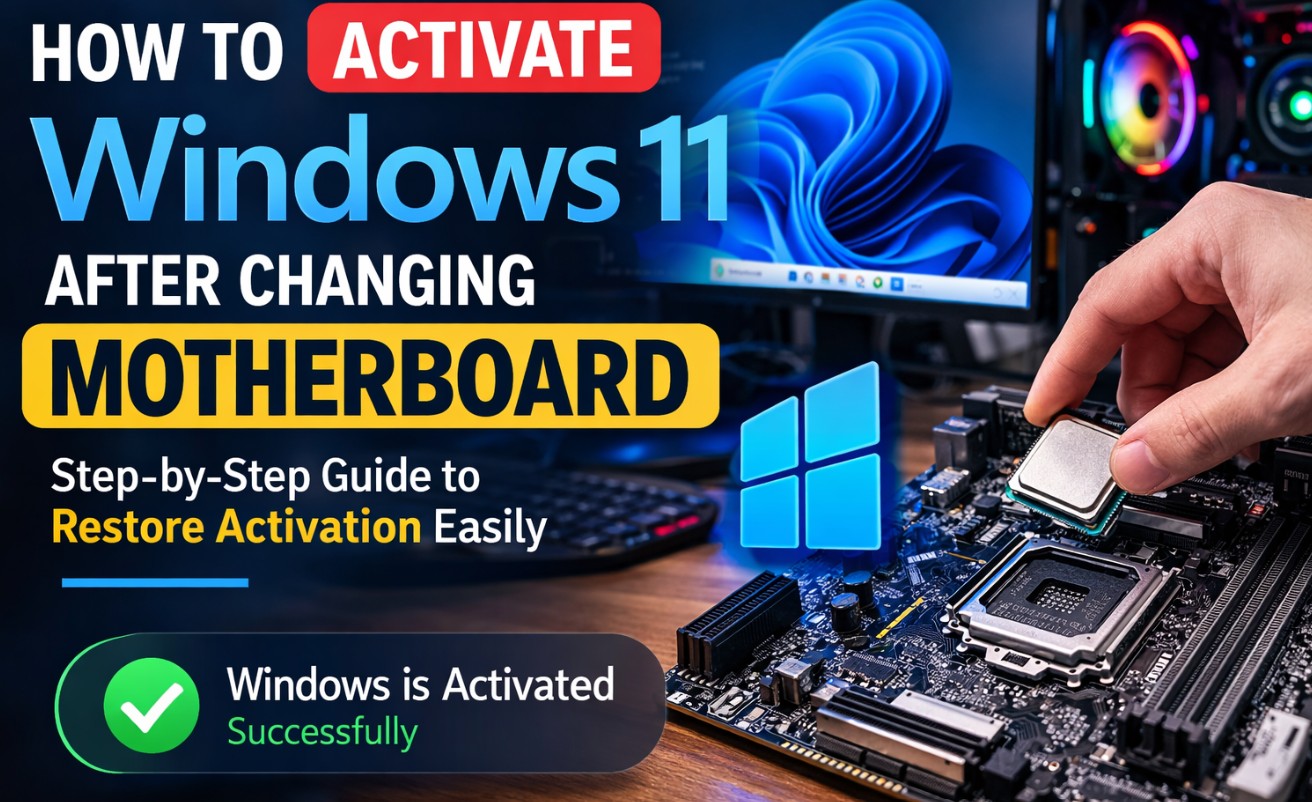
How to activate Windows 11 after changing motherboard remains one of the most searched questions among PC users who upgrade hardware. A motherboard replacement often triggers Windows deactivation because the operating system stores activation data inside a hardware profile linked to the device. When you install a new motherboard, the system identifies the computer as a new machine. The operating system no longer detects the original license linked with the previous hardware. Many users panic when they see the “Windows is not activated” message on the screen after a hardware upgrade. A clear process exists for restoring activation through Microsoft account linking, product key entry, or the built-in activation troubleshooter. This detailed guide explains every method you need so your system runs a fully activated Windows installation again.
How to Activate Windows 11 After Changing Motherboard
How Windows Activation Works
Windows activation serves as a verification system designed by Microsoft. It confirms a copy of Windows runs under valid licensing rules. Each activation associates the operating system with a specific hardware profile. The system records hardware identifiers during the activation process. These identifiers form a unique fingerprint used by Microsoft servers to verify legitimacy.
When a user installs Windows 11 on a device, the license links with the hardware configuration stored on Microsoft servers. A minor upgrade like RAM or storage rarely causes activation issues. A motherboard replacement triggers a different response because the motherboard holds many system identifiers used for license validation. When the operating system detects a large change in the hardware fingerprint, it interprets the computer as a different device. Microsoft documentation explains that a motherboard replacement counts as a significant hardware change. The digital license stored for the original hardware no longer matches the updated system configuration. The operating system disables activation until the user confirms ownership of the license.
Hardware ID and Digital License Connection
A digital license connects Windows activation with the device hardware profile. This license type stores activation data on Microsoft servers rather than relying only on a product key. Once the system activates online, the device gains a permanent digital authorization.
The motherboard contains several identifiers such as BIOS information, chipset configuration, and system serial data. These elements help generate the hardware ID used during activation. When the motherboard changes, many of those identifiers change as well. Windows therefore detects a mismatch between the stored license data and the new hardware configuration.
Microsoft created a recovery method through the Activation Troubleshooter. The tool helps users transfer activation from the previous hardware profile to the new system configuration. This process requires a Microsoft account linked to the original digital license before the hardware replacement.
Types of Windows 11 Licenses
Understanding license types helps you choose the correct activation method after hardware replacement.
Retail License
Retail licenses come from official purchases through stores or online retailers. This license type allows transfer between devices as long as it runs on one device at a time. Retail licenses remain the most flexible option for PC builders and upgrade enthusiasts. When a motherboard replacement occurs, the owner enters the product key again or reactivates using a Microsoft account. The activation server validates the license and restores activation.
OEM License
OEM licenses arrive preinstalled on new computers from manufacturers. These licenses link permanently with the original hardware. In most cases the motherboard acts as the primary hardware identifier. If the motherboard fails and a replacement occurs through the manufacturer, activation might restore automatically. Otherwise the license normally stays bound to the original system board. Some OEM licenses require purchasing a new license after major hardware replacement.
Digital License Linked to Microsoft Account
Digital licenses offer the easiest activation recovery after hardware changes. This license type links activation with a Microsoft account. When the motherboard changes, the user signs into the same Microsoft account. The activation troubleshooter retrieves the license stored on the account and assigns it to the updated device.
Important Steps Before Changing Your Motherboard
Link Windows License to Microsoft Account
A Microsoft account connection provides a reliable activation backup method. Linking the license ensures the activation troubleshooter identifies your device after hardware replacement.
Open Settings. Select System. Navigate to Activation. The page shows whether the license links with a Microsoft account. If no account appears, sign in and add one. Microsoft explains that linking the account allows Windows reactivation after significant hardware changes such as motherboard replacement.
Check Your Windows Edition
Windows activation works only when the installed edition matches the original license. For example, a Windows 11 Home license activates only on Windows 11 Home. Verify the edition inside the Activation page before performing any hardware change. This step avoids installation errors later.
Method 1. Activate Windows 11 Using Activation Troubleshooter
Step by Step Activation Guide
The Activation Troubleshooter serves as the primary recovery tool after motherboard replacement. This tool reconnects the license stored on your Microsoft account with the updated hardware configuration.
First connect the computer to the internet. Open the Settings application and navigate to System. Select Activation. The page shows the current activation status. Click the Troubleshoot option. The system begins analyzing activation data. A message appears indicating Windows cannot activate on the current device.
Choose the option labeled “I changed hardware on this device recently.” Sign in using the Microsoft account linked to the digital license. The troubleshooter displays a list of devices connected with the account. Select the device used previously. Check the option confirming the current device and complete activation.
Selecting “I Changed Hardware on This Device Recently”
The hardware change option allows manual license reassignment. This function transfers the digital license from the previous hardware profile to the current configuration. The system verifies the license and assigns activation to the new motherboard profile. The operating system immediately updates the activation status.
Method 2. Activate Windows 11 Using Product Key
Where to Find Your Windows Product Key
A product key consists of a 25-character code used for Windows activation. Many users receive this key through retail purchase, digital email delivery, or a certificate attached to the computer. Some computers include the key embedded inside firmware. The operating system reads this key automatically during installation.
Entering Product Key in Activation Settings
Open Settings. Navigate to System. Select Activation. Click the option labeled Change Product Key. Enter the 25-character key carefully. After verification, the system activates Windows through Microsoft servers. This method works especially well for retail licenses purchased separately from the computer hardware.
Method 3. Contact Microsoft Support for Reactivation
Some activation scenarios require manual verification through Microsoft support. Examples include hardware failure, missing product keys, or repeated hardware changes. The support team verifies ownership of the license. After verification they activate the system remotely or provide guidance for transferring the license.
Support activation often resolves cases involving OEM licenses or upgraded systems.
Common Errors When Activating Windows After Hardware Change
Windows License Not Found
This error appears when Windows fails to detect a valid license linked with the new hardware profile. The issue often occurs when the Microsoft account was not linked before hardware replacement. Signing into the correct account or entering the original product key usually resolves the problem.
Wrong Windows Edition Installed
Many users accidentally install a different Windows edition after hardware replacement. Activation fails when the installed edition does not match the license. For example, installing Windows 11 Pro while owning a Windows 11 Home license prevents activation. Reinstalling the correct edition solves the issue.
Retail vs OEM License Transfer Rules
| License Type | Transfer After Motherboard Change | Typical Source |
|---|---|---|
| Retail | Transfer allowed to new hardware | Purchased separately |
| OEM | Usually locked to original motherboard | Preinstalled by manufacturer |
| Digital License | Transfer through Microsoft account | Linked activation |
Retail licenses provide flexibility for system upgrades. OEM licenses usually stay tied to the original motherboard because manufacturers include them with the device hardware.
When You Need to Buy a New Windows License
Certain scenarios require a new license purchase. Systems running OEM licenses often face this limitation after motherboard replacement. A missing product key also prevents reactivation. Users who upgraded from older operating systems sometimes lose the original license record.
Purchasing a new Windows license resolves activation permanently.
Tips to Avoid Activation Problems in the Future
Link the Windows license with a Microsoft account before performing hardware upgrades. Keep a secure record of your product key. Verify the Windows edition before reinstalling the operating system. These steps protect activation data and reduce complications during hardware replacement.
Conclusion
Motherboard upgrades often trigger Windows deactivation because the operating system associates the license with hardware identifiers stored in the motherboard. The situation appears alarming for many users. A reliable recovery process exists through Microsoft account linking, activation troubleshooting, or manual product key entry. Understanding license types also helps determine the correct solution. Retail licenses allow transfer between devices while many OEM licenses remain tied to the original motherboard. Following the correct activation procedure restores full system functionality without reinstalling the operating system. Proper preparation before hardware upgrades prevents most activation problems and keeps your Windows installation running smoothly.