ODosta Inc. Create Your Own Tech World

If you are searching for how to transfer data from mobile to laptop without cable and you want a fast and simple method that works without USB errors or tangled wires. You can move photos, videos, documents, and music from your smartphone to your laptop using a wireless connection. This method uses your mobile hotspot and a WiFi FTP Server app to create a secure connection between your phone and PC. Once connected, you can drag and drop files in seconds.
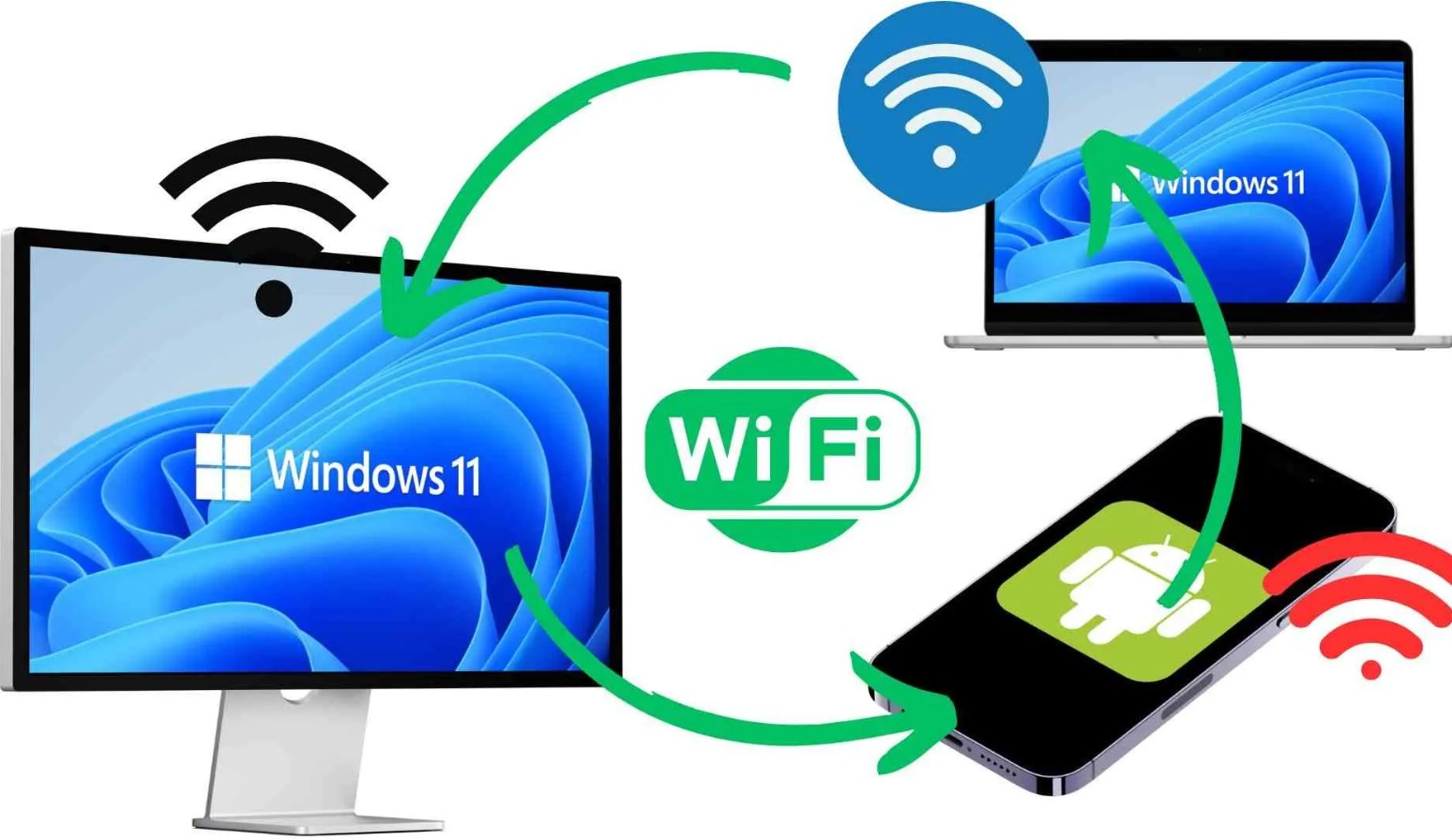
How to Transfer Data from Mobile to Laptop Without Cable
You do not need technical skills. You only need a stable WiFi connection and a few minutes to set everything up correctly.
Why You Should Transfer Files Wirelessly
When you connect your phone with a USB cable, you often face connection issues. Your laptop might fail to detect your device. Sometimes the cable stops working. Drivers create problems. You waste time troubleshooting. Wireless transfer removes those barriers. You connect your phone and laptop through WiFi. You access your mobile storage directly from your computer. You move files in both directions. You stay productive without interruptions.
This method works well if your USB port is damaged or if you do not carry a cable. It also helps when you want a cleaner workspace without extra wires on your desk.
What You Need Before You Start
Before you begin the process of how to transfer data from mobile to laptop without cable, make sure you have:
A smartphone with hotspot capability
A laptop with WiFi
An app called WiFi FTP Server from the Play Store
A stable battery level on both devices
Once you confirm these basics, you are ready to connect your devices wirelessly.
Step 1: Turn On Mobile Hotspot
First, open the settings on your smartphone. Activate the mobile hotspot option. Your phone will now create a WiFi network. Next, open your laptop. Go to WiFi settings. Connect your laptop to the hotspot network created by your smartphone. Once connected, both devices share the same local network.
This connection forms the foundation for wireless file transfer.
Step 2: Install and Open WiFi FTP Server
Go to the Google Play Store on your smartphone. Search for the app WiFi FTP Server. Download and install it.
Open the app. You will see a simple interface with a Start button. Tap on Start. Once you press Start, your phone becomes an FTP server. The app generates a server URL. It looks something like this:
ftp://192.168.XXX.XXX:2221
This address allows your laptop to access your mobile files through the local network.
Step 3: Add Network Location on Your Laptop
Now move to your laptop. Open File Explorer. Right click on This PC. Select Add a network location. Click Next. Choose the option to enter a custom network address. In the network address field, type the FTP server URL shown in your WiFi FTP Server app. Make sure you enter it correctly, including ftp, the IP address, and the port number.
Click Next. Continue with the default options. Click Finish. Your laptop will now open a folder. Inside this folder, you will see the storage of your smartphone.
Step 4: Transfer Files Between Mobile and Laptop
You now have full access to your smartphone files from your laptop screen.
To transfer files from mobile to laptop, simply drag and drop files from the network folder to your desktop or any folder on your PC. To transfer files from laptop to mobile, drag files from your PC into the network folder that represents your phone storage.
The transfer begins instantly over WiFi. You control everything from your laptop interface. This method works for images, videos, PDFs, music files, and other supported formats.
Advantages of Using WiFi FTP Server
When you understand how to transfer data from mobile to laptop without cable, you gain flexibility and control. This method offers several practical benefits.
You transfer files in both directions without plugging in any cable.
You avoid driver installation problems.
You access your entire phone storage easily.
You manage files from a larger screen.
You save time during repeated transfers.
If you create content, record videos, or take many photos, this approach improves your workflow. You move large files faster over a stable WiFi connection.
Important Tips for Faster Transfer
To get better speed and stability, follow these simple tips.
Keep your phone close to your laptop to maintain a strong signal.
Avoid using mobile data heavily while transferring files.
Make sure both devices stay connected to the same hotspot network.
Keep the WiFi FTP Server app running while transferring files.
If the connection drops, simply restart the app and reconnect the network location.
Is Wireless File Transfer Safe
Many users worry about security when they learn how to transfer data from mobile to laptop without cable. Since you use a private hotspot connection, your network remains isolated. Other users cannot access your files unless they connect to your hotspot and know the FTP address.
For extra safety, you can set a username and password inside the WiFi FTP Server app settings. This adds a layer of protection to your files. Always turn off the FTP server after completing your transfer. This prevents unwanted access.
Common Problems and Quick Solutions
Sometimes your laptop may fail to connect to the FTP address. If this happens, check these points.
Make sure the hotspot remains active.
Verify the IP address has not changed.
Ensure you typed the correct port number.
Restart the WiFi FTP Server app if needed.
Most issues occur due to typing errors or disconnected WiFi.
Final Thoughts
Now you know exactly how to transfer data from mobile to laptop without cable using a wireless FTP method. You activate your hotspot, connect your laptop, start the WiFi FTP Server app, and add the network location on your PC. Within minutes, you gain full access to your mobile storage.
This method gives you freedom from cables. It saves time. It improves efficiency. Once you set it up once, you repeat the process easily whenever you need it. Start using this wireless file transfer method today and take control of your data movement between your smartphone and laptop.